
Guide
How to monitor government RFPs and tenders
A bid window opens on a public procurement portal. Nobody emails your capture team. By the time someone refreshes SAM.gov, a state eProcurement page, or a city purchasing board, the notice has been up for days and the clock is already short. The job here is narrower than "watch the whole government web": when a portal posts a new solicitation in your trade, amends a pack you are chasing, or moves a deadline, the alert should land where the bid team already works, with a plain-language summary you can triage from. Example shape: Change detected on https://sam.gov/...: A new solicitation for managed IT services was posted with a submission deadline of 12 Oct 2026.
Free plan · 10 monitored URLs or sitemaps · AI included · PDF support · No credit card required
Kerro Page Deltasille mikä on tärkeää
ilmoita minulle kun uusi lääketarjous julkaistaan
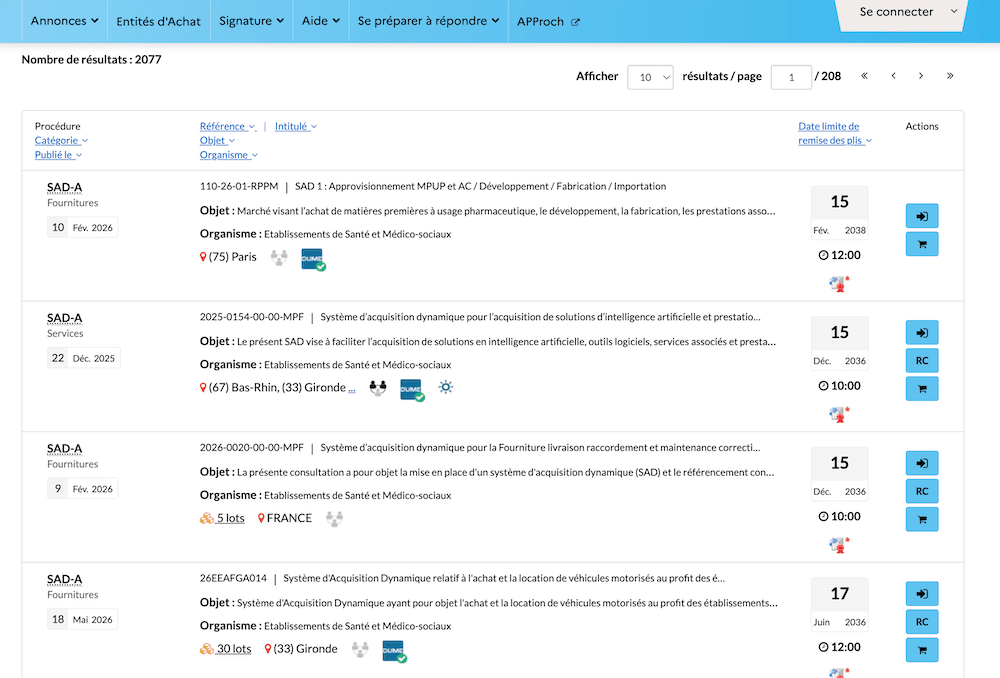
🔔 Muutos havaittu kohteessa https://www.marches-publics.gouv.fr:
Uusi tarjouspyyntö farmaseuttisista raaka-aineista julkaistiin — määräaika 15. helmikuuta 2038.
Why RFP pages need their own monitors
A homepage monitor will not do this job. Portal chrome, maintenance banners, and rotating "featured opportunities" widgets are real diffs. They are not a new solicitation in your NAICS band, an addendum on an active pursuit, or a shortened submission date. Procurement listings churn constantly. Teams that try to watch "the whole portal" with one vague brief recreate a visual-diff firehose inside Slack (or bury the signal in a shared bids@ inbox). The product overview for this desk lives on our government tender and RFP monitoring use case. This post is the setup: which URLs to paste, what to ask for, what to ignore, and how the path differs from a selector-and-diff workflow.
The moves that actually matter
A new solicitation or tender notice appears in your category, region, or NAICS / CPV codes. An amendment, addendum, or Q&A pack is added to a bid you are pursuing. A submission deadline is extended or shortened. Award or intent-to-award notices post for a chase you care about. A framework or contract approaches re-tender on a renewal page you watch. A tender PDF pack gains a new specification document.
What to ignore on purpose
Scheduled-maintenance banners, cookie notices, footer and nav chrome, pagination reshuffles, and "last updated" stamps with no new row. If you do not name those in the brief, the hash will still see them as changes and you will spend week one editing ignore clauses.
Government tender and RFP monitoring use case
Product framing for the bid desk: which portals to watch, how AI filtering fits solicitations and addenda, and how alerts land in Slack or a signed webhook.
Government tender monitoring →How this differs from a Visualping-style RFP watch
Classic website monitors in the Visualping family are built around "something on the screen moved." For procurement pages, their guides often walk you through picking a region or selector on the listing, setting a fixed check interval (daily or weekly is common in their RFP and SAM.gov posts), then reading a highlighted diff. Material triage often needs another step to decide pursue-or-pass. That path works if you want to operate a monitoring-and-diff rig, and Visualping also supports some login-walled portals via page actions, which Page Deltas does not yet. Page Deltas asks a different question on the public web. Paste the public listing URL, search-results URL, or tender PDF, write a natural-language brief, and an LLM judges whether the change matches what you asked for. The alert opens with a summary plus before/after screenshots. No selector maintenance for the primary workflow. Cadence is adaptive (active pages more often, quiet ones less; paid plans get priority checking). Full plan-for-plan comparison lives on Page Deltas vs Visualping. This post is the bid-desk setup. PDF support matters here: tender packs, specs, and addenda often ship as downloadable PDFs, and selector tools are awkward on those files. Page Deltas reads public HTML and public PDFs with the same brief-and-summary loop.
Visualping-style path
Pick regions or selectors on the RFP page, set a poll interval, often add more automation for importance routing. Email (or Slack on higher tiers) inherits the diff-first model unless you build more. Login flows are available for some password-protected portals.
Page Deltas path
Paste the public portal URL, filtered search URL, or tender PDF. Write the brief. Attach Slack / Discord / Teams / email / a signed webhook. AI filtering and summaries are on every plan, including Free. You still decide pursue-or-pass. The tool's job is to stop the portal firehose before it hits the channel. Public pages only; authenticated portals are on the roadmap.
Page Deltas vs Visualping →Setup: first RFP alert in about five minutes
Same path as our how to monitor website changes walkthrough, scoped to procurement.
Pick the exact portal URL (not the agency homepage)
HTTPS recommended. Public pages only. Prefer the filtered listing or search you already use day to day, not the marketing landing page. On SAM.gov, run your search (keywords, NAICS, set-aside, agency), then copy the full results URL from the address bar. Short hand-typed URLs often render an empty form; the long generated URL is the watchable page. State and city portals work the same way: paste the solicitations board, award tab, or agency purchasing page your team already refreshes. If the tender pack is a public PDF, paste the PDF URL itself. One listing (or one pack), one monitor.
Create a free Page Deltas account
Sign up at pagedeltas.com/register. No credit card. Free plan: 10 monitored URLs or sitemaps, unlimited checks (best-effort frequency), AI filtering and summaries, unlimited teammates, Slack / Discord / Teams / email / signed webhooks, REST API and MCP, 14-day history.
Connect the channel where bid triage already happens
Open Channels, then add Slack, Microsoft Teams, or Discord via an incoming-webhook URL (or email / signed webhook). Click Send test. Do the test. A working monitor with a silent channel is how people decide the product is broken. Most teams use something like #bids or #govcon, not a private inbox. Full Slack wiring is in How to get website change alerts in Slack.
Create the monitor with a real brief
Click New monitor. Paste the portal URL or PDF. Write the description like a brief, not a search query. Three pieces: what the page is, which opportunities matter, what to ignore. Example (SAM.gov-shaped IT services search): Federal Contract Opportunities search for managed IT / cybersecurity. Alert me when a new solicitation or award notice is posted that matches NAICS 541512 / 541519 or mentions managed services, zero trust, or SOC. Ignore maintenance banners, pagination, and footer chrome. Summarise the solicitation title, notice type, and deadline if present.
Let the first check establish the baseline
A new monitor is due immediately. The first check stores the fingerprint. You should not expect a "new solicitation posted" alert on minute one unless the page actually changed between two checks in a way that matches the brief. Use Check now after you tighten the brief.
Copy-paste briefs for common bid jobs
Steal the shape. Swap the portals and codes. Vague briefs ("tell me when this changes") recreate a visual-diff firehose on a busy SAM.gov results page.
New solicitations on a filtered portal search
[Portal] Contract Opportunities search for [trade / NAICS / region]. Alert me when a new solicitation, RFP, or tender notice is posted that matches [codes or keywords]. Ignore maintenance banners, cookie widgets, pagination, and footer chrome. Summarise title, notice type, and deadline if shown.
Amendments on an active pursuit
Active solicitation detail page for [solicitation ID / title]. Alert me when an amendment, addendum, Q&A document, or revised specification is posted, or when the submission deadline changes. Ignore page chrome and unrelated related-opportunity widgets. Summarise what was added and whether the deadline moved.
Tender PDF pack
Public tender PDF pack for [opportunity]. Alert me when specifications, pricing schedules, or addenda are added or revised, or when submission instructions change. Ignore cover-page branding and pure formatting. Summarise which document family changed.
Award / intent-to-award tab
[Portal] award or results listings for [agency / keyword]. Alert me when a new award notice or intent to award is posted. Ignore unrelated news widgets. Summarise awardee and value if shown.
State / city purchasing board
[City or state] purchasing / bidding opportunities page. Alert me when a new RFP, IFB, or RFQ is posted in [categories you bid]. Ignore calendar widgets and maintenance notices. Summarise title, buyer, and due date if present.
What else to watch (without stuffing one monitor)
Procurement portals are one slice of bid capture. Pair them deliberately. Do not dump everything into one brief.
Discovery vs pursuit as separate monitors
Put the new-RFP brief on the listing or search URL. Put amendment and deadline briefs on the detail pages (or PDF packs) of bids you are actively chasing. One vague monitor on the whole portal either fires constantly or misses the addendum that disqualifies a late response.
Award and renewal pages
Award tabs tell you who won and at what value. Renewal or expiring-framework pages tip recompetes. Separate monitors, separate briefs.
Regulatory pages (different use case)
When the signal is a regulator rewriting guidance rather than a buyer posting a solicitation, that is a separate desk and a separate brief. Do not overload an RFP monitor with rulemaking language.
Regulatory & compliance monitoring →Signed webhook / API into bid tools
If the alert should open a row in your bid CRM or proposal tool, use a signed webhook or the REST API.
How to turn any website into a change API →Keep the channel useful after day one
Treat the brief as the product. A channel full of noise dies faster than an empty one.
One portal slice, one URL, one brief
Start with the 5-10 portals that actually produce winnable work for you. Expand later. Several specific monitors beat one vague monitor on "all government."
Edit the brief, don't mute the channel
Noisy alert → open the summary → add an explicit ignore clause → Check now. The new brief applies on the next check, not retroactively.
Thread the response
👀 reviewing, ✅ pursue / pass, keeps #bids scannable. The alert is the start of capture triage, not a substitute for reading the pack.
AI triage is not bid advice
The summary is meant to get a qualified capture person to the right notice faster. It does not replace reading the solicitation or counsel on set-aside eligibility.
Honest limits
Plans if you outgrow ten URLs: Starter $29 / 150 URLs, Pro $79 / 1,000, Business $199 / 5,000, Scale $499 / 20,000, Enterprise custom. AI, screenshots, all five alert channels, unlimited checks, and unlimited team members are included on every tier; paid adds priority checking and longer history. Free includes REST API and MCP.
Public pages only
Login-walled vendor portals, SSO bid rooms, and customer-only eProcurement dashboards are not supported yet. Authenticated monitoring is on the roadmap. Anything visible without signing in is fair game, including public filtered search URLs and public PDF packs. If a portal only shows solicitations after Login.gov or a vendor account, use that portal's native saved searches as a belt-and-suspenders layer, or wait for authenticated monitoring.
Not a visual-regression tool
If the job is "did this pixel move 20px," a visual-diff product still wins. We strip nav/footer/ads and ask whether the leftover change matches your brief.
Not a bid aggregator or SAM.gov replacement
You get alerts, summaries, and before/after screenshots of versions captured while the monitor was on. That is useful for "what posted on Tuesday." It is not a scored opportunity database, a NAICS CRM, or a substitute for reading the full solicitation.
Not LinkedIn or X activity
Page Deltas watches the open web. If the signal is a contracting officer's LinkedIn activity rather than a public portal page, that is a different job (MultiFollow / KWatch).
Cadence is adaptive, not a typed hourly poll
Check now is the escape hatch. Higher plans get scheduling priority. Discovery pages often change daily; adaptive cadence is usually enough once the brief is tight. For an active pursuit with a same-day amendment risk, use Check now after rumors or a buyer email, and consider a dedicated detail-page monitor.
Frequently asked questions
- How often should I check RFP portals?
- You do not type an interval in Page Deltas. Adaptive cadence checks active pages more often and quiet ones less. For discovery listings that post through the week, that is usually enough; use Check now after a buyer tip or a deadline rumor. Paid plans get scheduling priority for time-sensitive portals.
- Can I monitor a SAM.gov search instead of the whole site?
- Yes. Run the filtered search, copy the full results URL, and paste that. Pair it with a brief that names your NAICS codes or keywords so count updates and pagination shuffles stay out of the channel.
- Will it catch tender PDFs and addenda?
- Yes, if the PDF is publicly reachable at a stable URL and your brief asks for the document families that matter. Paste the PDF URL as its own monitor.
- Can I send different portals to different Slack channels?
- Yes. Add one incoming-webhook channel per destination under Channels, then attach the right ones per monitor (or leave unchecked to use org defaults).
- How is this different from Visualping's RFP / SAM.gov workflows?
- Those guides often lean on region or selector targeting, fixed check frequencies, diff-first alerts, and (where needed) login page actions. Page Deltas uses a natural-language brief, AI filtering/summaries on every plan (including Free), adaptive cadence, native Slack / Discord / Teams / email / signed webhooks, and first-class public PDF monitoring. Page Deltas does not monitor login-walled portals yet. Full comparison: Page Deltas vs Visualping.
- Is this a substitute for reading the solicitation?
- No. It is a detection and triage layer so capture spends time on winnable notices instead of refreshing a dozen portals on a calendar. Final bid/no-bid stays with your team.
Author
Julien, Product Manager at Page Deltas. Pick the one procurement URL your team already refreshes before standup. Paste the filtered listing (or the active-pursuit PDF), write the sentence you'd send capture about NAICS and region, connect the channel the bid desk already sits in, send a test, and wait for the first real match. Tighten the ignore list once. That is usually the whole RFP setup.
Start with one filtered procurement search
Free plan, no card. Create an account, paste the SAM.gov (or state/city) search you already babysit, drop in a brief from above, and route the alert to the channel where bid triage already happens.